Guides 11 min read
TestFlight guide (2026): internal and external testers, Beta App Review and public links
How TestFlight works in 2026: internal vs external testers, groups, public links and tester criteria, Beta App Review, uploading and processing builds, export compliance, feedback and crashes, and fixes for Missing Compliance, stuck processing and expired builds.
Contents13 sections
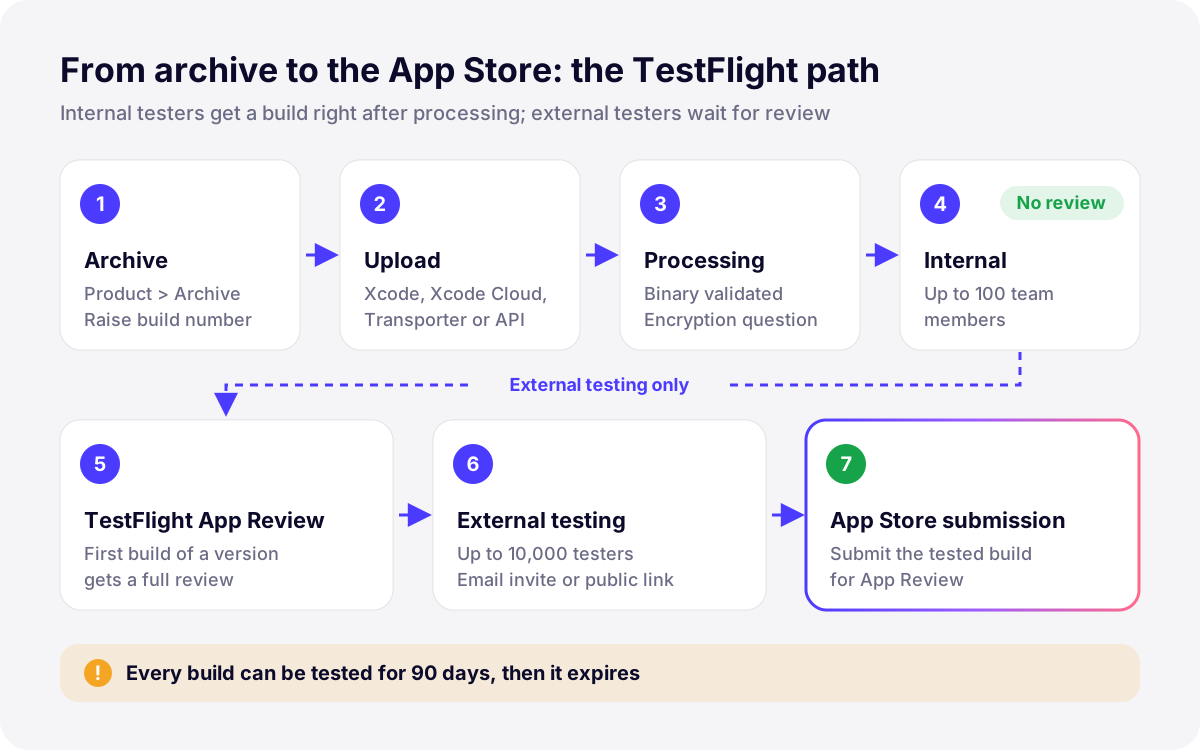
TestFlight is Apple’s beta testing service for iOS, iPadOS, macOS, tvOS, watchOS and visionOS apps. You upload a build to App Store Connect, share it right away with up to 100 internal testers from your team, and, after the first build of a version passes TestFlight App Review, with up to 10,000 external testers invited by email or through a public link. Each build can be tested for 90 days. This guide walks through the full path, from archive to App Store submission, with the issues that block most teams.
Key takeaways
- Internal testers are App Store Connect users on your team: up to 100, no review, available as soon as the build is processed.
- External testers can be anyone: up to 10,000 per app, invited by email or public link, after TestFlight App Review approves the build.
- The first build of a version gets a full review; later builds of the same version might not. You can submit up to six builds for review in 24 hours.
- Public links can be capped (1 to 10,000 testers) and filtered by device and OS version.
- Builds expire after 90 days. “Missing Compliance” means the export compliance (encryption) question is unanswered.
- Testers send screenshots and crash comments from the app; you read them in App Store Connect or Xcode.
Internal vs external testers
TestFlight has two audiences, and almost every question about it comes back to this split. According to Apple’s TestFlight overview:
| Internal testers | External testers | |
|---|---|---|
| Who | App Store Connect users on your team | Anyone with an Apple Account |
| Limit | Up to 100 | Up to 10,000 per app |
| Invitation | Email to existing users | Email or public link |
| Review | None | TestFlight App Review (first build of a version) |
| Available | Once processing is complete | Once the build is approved |
| Build lifetime | 90 days | 90 days |
| Typical use | Daily builds, QA, the team’s own devices | Beta programs, clients, early customers |
Each tester can install the builds you share on up to 30 devices, according to Apple’s TestFlight page. Internal testers need an App Store Connect role, so they count as users of your account: give clients and occasional testers an external invitation instead of a seat on the team.
Upload a build: Xcode, Xcode Cloud or Transporter
Every TestFlight build starts as an archive. Increase the build number (CFBundleVersion) first: App Store Connect identifies each upload by its bundle ID, version and build string, and refuses a build string it has already seen for that version. Then pick an upload path from Apple’s upload builds page:
- Xcode. Product › Archive, then Distribute App in the Organizer. “App Store Connect” uploads a build you can test and later submit; “TestFlight Internal Only” uploads a build that can only go to internal groups, never to external testers or customers.
- Xcode Cloud. A workflow with an Archive action and a TestFlight post-action delivers builds to the groups you choose. Apple’s workflow documentation adds conditions for external testing, such as a clean build from a single branch.
- Transporter. Apple’s Mac app uploads an exported
.ipaor.pkg, handy when the build comes from another machine or CI system. - Command line and API.
xcrun altooland the App Store Connect API cover scripted pipelines.
After the upload, the build is processed: Apple validates the binary, prepares device-specific variants and checks what it can automatically. You receive an email when processing is complete, or an email listing the issues (the ITMS- codes) if the build is invalid. Apple does not publish a processing time; it is usually short, but plan some margin before a deadline.
Export compliance: the encryption question
Every build must declare whether it uses encryption, because US export rules apply to apps distributed worldwide. Until you answer, the build shows Missing Compliance and nobody can test it. Apple’s export compliance overview explains which uses are exempt: encryption provided by Apple’s operating systems, HTTPS and TLS connections, standard algorithms. Most apps only use exempt encryption, so you can answer once in Info.plist and the question disappears from future uploads:
<key>ITSAppUsesNonExemptEncryption</key>
<false/>
Only set it to false if it is true. Proprietary or non-standard cryptography requires documentation, which Apple reviews before the build can be distributed (statuses “Waiting for Export Compliance Review” and “In Compliance Review”). Apple also notes that France controls the import and export of some encryption apps. You remain responsible for the declaration, so check with counsel if your app ships its own crypto.
Internal testing: groups and automatic distribution
In the TestFlight tab, create an internal group, add App Store Connect users and add builds. According to Apple’s internal testers page, the Enable automatic distribution option sends every build uploaded from Xcode to the whole group, while without it you add builds by hand. When you add a build, the “What to Test” field tells testers what changed and where to look; it is shown in the TestFlight app.
Internal testing is where most bugs should die. In our own releases we keep a small internal group on automatic distribution for every build, and only promote a build to external groups once it has survived a few days on real devices.
External testing and TestFlight App Review
To invite external testers, you first need an internal group, then an external group. Before the first submission, fill in the Test Information page: a beta app description and a feedback email are required, and the Beta App Review Information section asks for a contact for the reviewer and, if the app needs a login, working sign-in details.
When you add a build to an external group, it goes to TestFlight App Review. Apple’s external testers page says the first build you submit requires a full review, while later builds for the same version might not, and that you can submit up to six builds for review within 24 hours. The statuses move from “Waiting for Review” to “In Beta Review”, then to “Ready to Test” or “Testing” once approved. If you did not tick “Automatically notify testers”, click Notify Testers yourself.
Beta review applies the App Store Review Guidelines. Guideline 2.2 sets three rules worth knowing:
- A TestFlight beta should be intended for public distribution and comply with the guidelines. TestFlight is not a private distribution channel for apps that would never pass App Review.
- Testers cannot be paid or rewarded in any way for access, including as a reward for crowdfunding.
- Significant updates to a beta should go through TestFlight App Review before you distribute them.
An approved beta build is not an approved app. App Review looks at the final submission again, with its metadata, privacy answers and in-app purchases, so a beta that passed can still be rejected later, for example under guideline 4.2 or 4.3.
Groups, public links and tester criteria
Groups are how you organize testers and decide who gets which build. A common setup is one internal group for the team, one external group for clients or friends, and one public beta group. Each group can receive different builds, so a risky feature can go to a small group first.
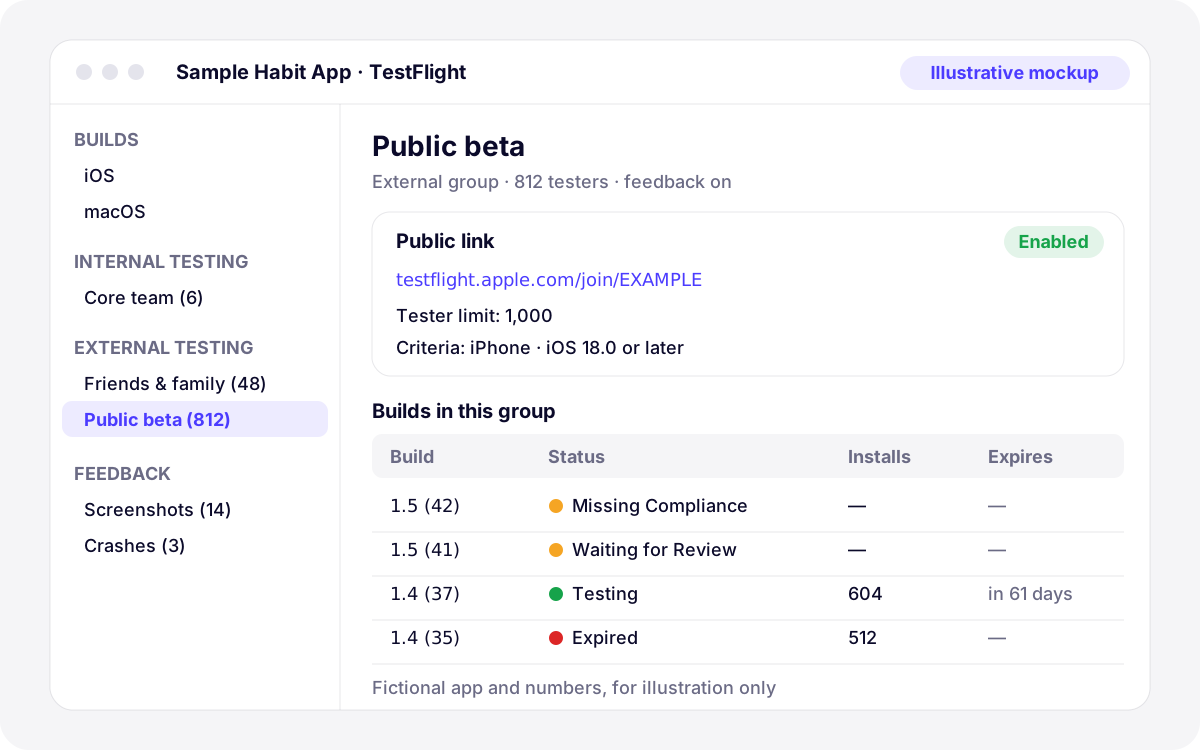
A public link lets anyone join an external group from a URL you share on your site, newsletter or social accounts. When you create it, you choose between “Open to Anyone” and “Filter by Criteria”:
- Tester limit: cap the number of people who can join through the link, from 1 to 10,000.
- Criteria: filter by device type and OS version: a range, a minimum, a maximum, or all supported versions. Use it when the beta needs a recent iOS or a specific device family.
- Manage: edit the criteria, change the limit, or disable the link at any time from the group.
Public link testers appear as anonymous in App Store Connect: you see installs, sessions and crashes, but not names or emails, unless a tester adds an email when sending feedback. If you need to know who tests, invite by email.
TestFlight on Mac, Apple Vision Pro and other platforms
TestFlight is not iPhone-only: it accepts iOS, iPadOS, macOS, tvOS, watchOS and visionOS builds, and testers install the TestFlight app on the matching device. Two points matter for cross-platform apps:
- iPhone and iPad apps on Apple silicon Macs. This is off by default. In each group’s settings, enable “Test iPhone and iPad apps on Apple silicon Macs” if you plan to offer the app on the Mac App Store, and test the window resizing, keyboard and pointer behavior.
- Native Mac and visionOS apps. Each platform has its own builds list in the TestFlight tab. Testers can send screenshot feedback from TestFlight on Mac and on Apple Vision Pro, as on iPhone.
Collect feedback, screenshots and crash reports
Testers send feedback without leaving your app: they take a screenshot, mark it up and add a comment. When the beta crashes, TestFlight offers to share the crash with an optional comment. Apple’s tester feedback page lists where it all lands:
- App Store Connect, TestFlight tab › Feedback › Screenshots and Crashes, with the device, OS version, build and group. Crash reports can be downloaded for 120 days.
- Xcode, through Open in Xcode or the Organizer, where crashes are symbolicated against your archive.
- The App Store Connect API and webhooks, to push new feedback into your issue tracker.
- Build metrics: invites, installs, sessions over the last seven days, crashes and feedback count for each build.
Feedback quality depends on your instructions. A precise “What to Test” note (“New: CSV export in Settings. Please try it with more than 100 entries”) gets far more useful reports than “bug fixes and improvements”. The feedback email you entered in Test Information stays available for testers who prefer to write.
What to test before App Store submission
The most useful TestFlight round is the last one: the exact build you will submit, tested the way a reviewer will use it. Guideline 2.1 rejects crashes, broken links and placeholder content, and most of those are visible in TestFlight first. Our App Store submission checklist covers the metadata side; this is the build side.
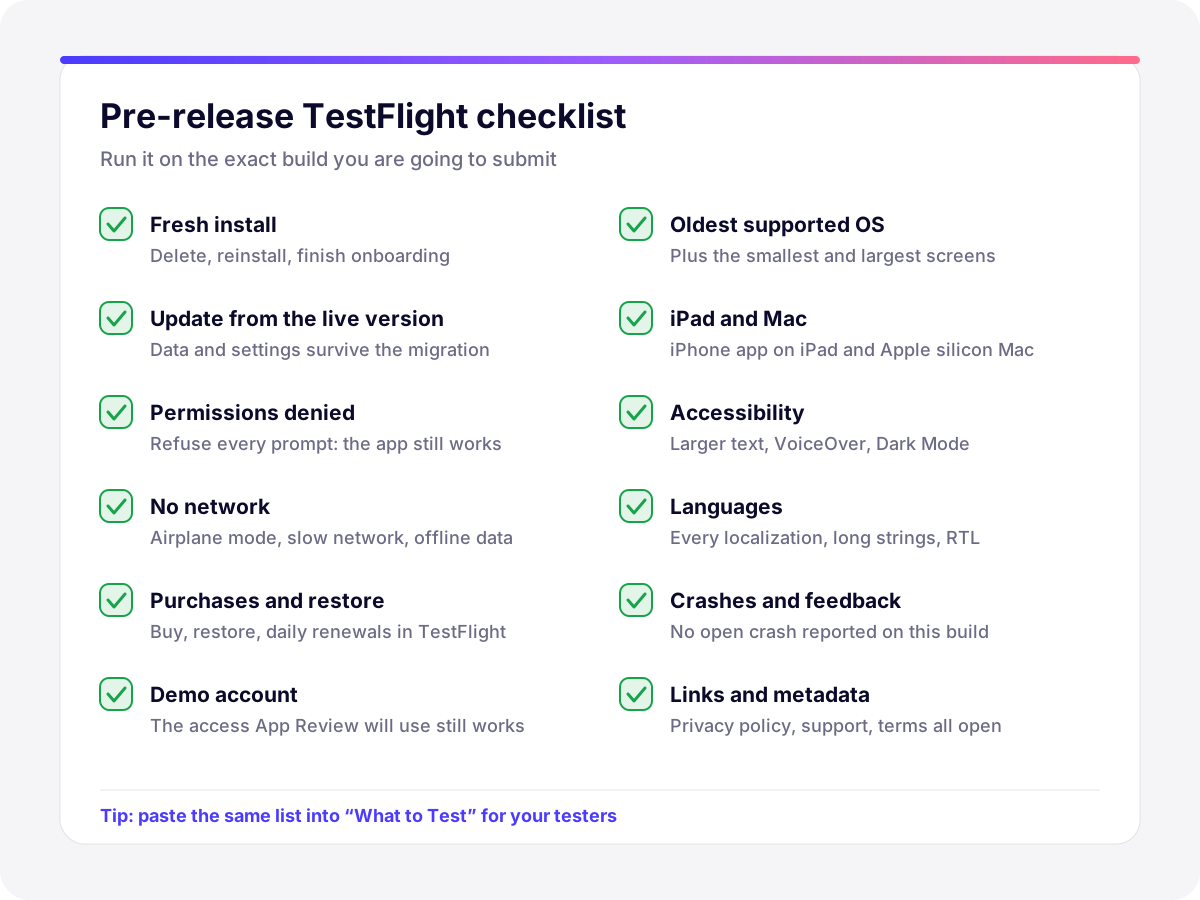
Purchases deserve their own pass. Apps installed from TestFlight run in the sandbox environment, so nobody is charged, and subscriptions renew at an accelerated rate: according to Apple’s TestFlight purchase testing page, every subscription renews daily, up to six times within a week, whatever its duration. That is enough to check renewal, expiry and restore. For billing retry and other edge cases, use a Sandbox Apple Account. Our guide to getting subscriptions through App Review lists what reviewers check on the paywall.
Common TestFlight issues and how to fix them
| Symptom | Likely cause | Fix |
|---|---|---|
| Build shows “Missing Compliance” | Export compliance not answered | Answer in App Store Connect, then add ITSAppUsesNonExemptEncryption to Info.plist |
| Build stuck in processing | Slow processing, or an upload issue reported by email | Check your email for ITMS- errors and Apple’s system status; if nothing moves for a long time, upload again with a new build number |
| Build never appears | Invalid binary, duplicate build number, wrong bundle ID or team | Read the rejection email, increment the build number, check signing |
| ITMS-91053 email after upload | Required-reason API not declared | Fix the privacy manifest and upload again |
| Build “Expired” | 90 days have passed, or someone clicked Expire Build | Upload a new build; testers cannot install an expired one |
| “Rejected” in beta review | Guideline issue, missing demo account, crash | Read the message, fix, upload a new build |
| Build cannot be added to an external group | Uploaded as “TestFlight Internal Only” | Upload again with the App Store Connect distribution option |
| Tester cannot join the public link | Limit reached, or device and OS outside the criteria | Raise the limit or widen the criteria |
Two habits prevent most of these: increase the build number on every archive, and commit the encryption key in Info.plist from the first version. Builds that expire during a long beta are normal; plan a new upload at least every couple of months so testers always have a valid build.
How Develak uses TestFlight
Develak publishes more than 30 apps on the App Store, and every release goes through TestFlight before submission: internal testing on our own devices, then the final build checked against the list above. For client projects, we set up the groups, write the test notes, run external betas with the client’s users and follow Beta App Review through to the App Store submission. If you are launching a first version, our MVP app development service includes this beta phase; for apps already live, our app maintenance service covers regular builds, TestFlight rounds and OS updates.
FAQ
How many testers can TestFlight have?
Up to 100 internal testers, who are App Store Connect users on your team, and up to 10,000 external testers per app, invited by email or public link. Each tester can install your builds on up to 30 devices.
Does every TestFlight build need Beta App Review?
No. Internal testing never needs review. For external testing, the first build of a version gets a full review; later builds of the same version might not, though significant changes should go back through review. You can submit up to six builds for TestFlight App Review in 24 hours.
How long does a TestFlight build last?
90 days from upload. After that the build shows “Expired” and testers can no longer install it. You can also expire a build earlier from App Store Connect, for example when it contains a serious bug.
How do I create a TestFlight public link?
Open an external group in the TestFlight tab and click Create Public Link. Choose “Open to Anyone” or “Filter by Criteria” (device type and OS version), optionally set a tester limit between 1 and 10,000, and share the URL. Testers can install once the group has a build approved by TestFlight App Review.
What does “Missing Compliance” mean in TestFlight?
The build has no export compliance answer. Answer the encryption questions on the build in App Store Connect. If your app only uses exempt encryption, such as HTTPS and Apple’s frameworks, add ITSAppUsesNonExemptEncryption set to false in Info.plist so future builds skip the question.
Can I pay or reward TestFlight testers?
No. Guideline 2.2 says apps using TestFlight cannot be distributed to testers in exchange for compensation of any kind, including as a reward for crowdfunding. You can thank testers, but access to the beta must not be sold or traded.
Building an iOS app?
Native Swift and SwiftUI, from the first sketch to the App Store and beyond.
Start a projectContents