Guides 13 min read
App Store Connect errors: what they mean and how to fix them (2026)
The App Store Connect and upload errors iOS developers hit most often, with their exact wording, what they mean and how to fix them: ITMS-90683, ITMS-91053, ITMS-91061, ITMS-90725, ITMS-90717, ITMS-90189, ITMS-90062, Missing Compliance, Unable to Submit for Review and guideline 2.1 crashes.
Contents10 sections
Most App Store Connect errors fall into three groups. Upload errors (Xcode or Transporter refuses the build) come from the project itself: the bundle ID, the version or build number, the SDK or the app icon. Emails received after upload, such as ITMS-90683, ITMS-91053 and ITMS-91061, point to a missing purpose string or privacy manifest, in your code or in an SDK. Messages inside App Store Connect, such as “Missing Compliance” or “Unable to Submit for Review”, are fixed in App Store Connect without a new build. Read where the message appeared, find its code below, apply the fix, and upload a new build only when the binary has to change.
Key takeaways
- Every upload needs a build number never used before for that version, and a version number higher than the last approved one.
- Since April 28, 2026, uploads must be built with Xcode 26 or later and an iOS 26 SDK (ITMS-90725).
- ITMS-90683, ITMS-91053 and ITMS-91061 often come from a third-party SDK, not your own code; the email names the file to look at.
- “Missing Compliance” and “Unable to Submit for Review” are App Store Connect states: answer the question or complete the submission, no new build needed.
- A guideline 2.1 rejection comes with crash logs: symbolicate them, reproduce on a device, then submit a fixed build.
Quick reference: error, cause, fix
| Error | Cause | Fix |
|---|---|---|
| No suitable application records were found | No app record with this bundle ID, or your user can’t access it | Create the app record with the exact bundle ID; check your access |
| ITMS-90189: Redundant Binary Upload | Build number already used for this version | Increment the build number and upload again |
| ITMS-90062 / ITMS-90186 | Version number not higher than the last approved one | Raise the version number |
| ITMS-90725: SDK version issue | Built with an SDK older than iOS 26 | Build with Xcode 26 or later |
| ITMS-90717: Invalid App Store Icon | Icon with transparency or an alpha channel | Export an opaque icon without alpha |
| ITMS-90683: Missing purpose string in Info.plist | Code or an SDK references a protected API | Add the matching usage description key |
| ITMS-91053: Missing API declaration | Required reason API used without a declared reason | Declare it in the privacy manifest |
| ITMS-91061: Missing privacy manifest | A listed third-party SDK ships without a manifest | Update or replace the SDK |
| Missing Compliance | Encryption question not answered | Answer it; add ITSAppUsesNonExemptEncryption |
| Unable to Submit for Review (new subscription groups) | Group in the submission without its subscriptions | Add each subscription and the app version to the draft |
| Guideline 2.1 – Performance – App Completeness | Crash or incomplete app during review | Symbolicate the crash logs, fix, submit a new build |
Where each error appears
A build passes several checkpoints between Xcode and the App Store, each with its own messages. The checkpoint that failed tells you where the fix belongs: the Xcode project, an SDK, or App Store Connect.
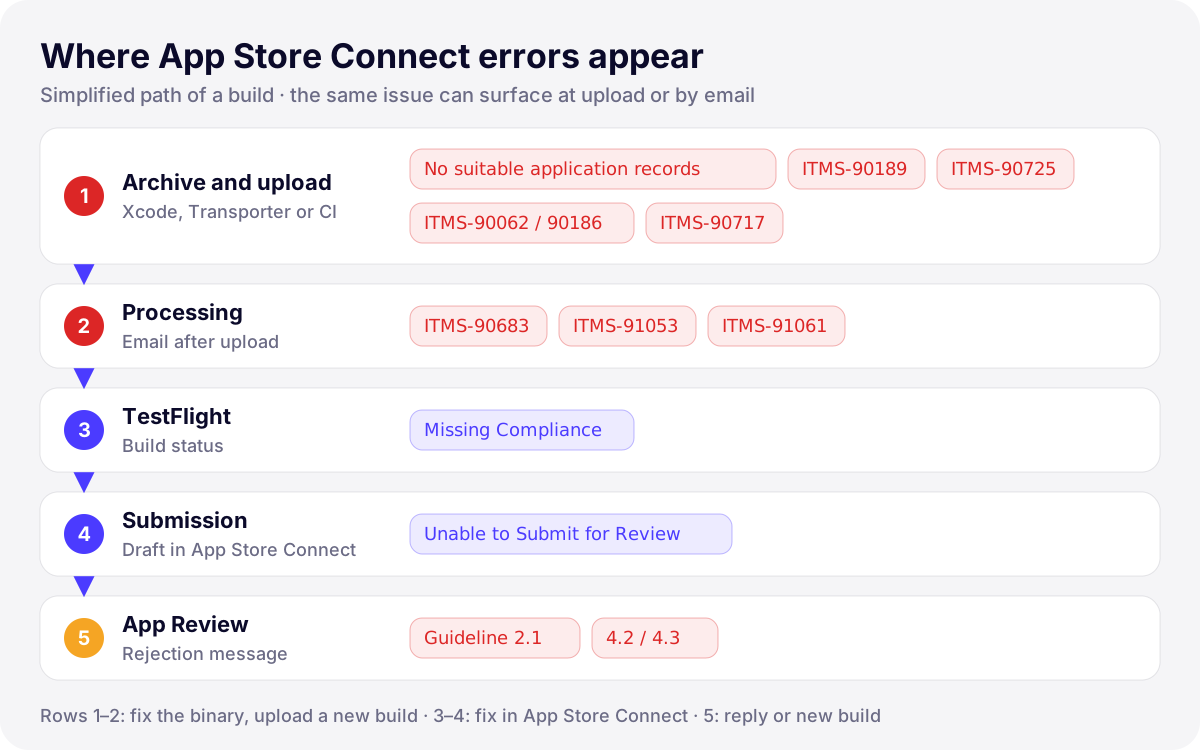
Errors when uploading a build
These appear in Xcode’s Organizer, Transporter or CI logs, and the build never reaches App Store Connect. The fix is in the project, then a new archive.
No suitable application records were found. Verify your bundle identifier ‘…’ is correct.
What it means: App Store Connect has no app record that matches the bundle ID of the build you are uploading, or none that your account can see. Apple’s Add a new app page is clear on the order: create the app record before uploading a build, with the Account Holder, Admin or App Manager role. Apple’s Preparing your app for distribution adds that the bundle ID in App Store Connect must match the one in your project, and that it can’t be changed after the first upload.
- Compare the bundle ID in Xcode (target › Signing & Capabilities) with the app record’s, including letter case.
- If the record doesn’t exist, create it in Apps › New App with that bundle ID.
- If it exists, check in Users and Access that the account uploading has access to this app. In an Apple Developer Forums thread, several developers fixed it by giving the uploading user access to all apps or a broader role.
ITMS-90189: Redundant Binary Upload
What it means: the full message reads “You’ve already uploaded a build with build number ‘…’ for version number ‘…’. Make sure you increment the build string before you upload your app to App Store Connect.” The build number (CFBundleVersion) must be new for each upload of a given version, even if the earlier upload failed processing or never appeared in TestFlight.
Fix: increase the build number (Build, in the target’s General pane), archive and upload again. Apple’s distribution guide notes that Xcode can update it for you when you upload from the Organizer (the “Manage version and build number” option). In CI, derive it from the pipeline run so it can’t repeat. Our TestFlight guide covers the rest of the upload flow.
ITMS-90062: This bundle is invalid / ITMS-90186: Invalid Pre-Release Train
What it means: the two usually arrive together. ITMS-90062 says “The value for key CFBundleShortVersionString […] in the Info.plist file must contain a higher version than that of the previously approved version […]”, and ITMS-90186 says “The train version ‘…’ is closed for new build submissions”. You are uploading a build for a version number that is already approved, or lower than the approved one.
Fix: raise the version number (Version in the General pane, CFBundleShortVersionString) above the last approved version, for example 2.4 if 2.3 is live, with a build number not yet used for that version. Apple’s guidance is to increment the version number when you create a new version of your app; add the matching version in App Store Connect when you are ready to submit it. “This bundle is invalid” is a generic prefix: read the rest of the message, because other validation errors start with it too.
ITMS-90725: SDK version issue
What it means: the build was made with an SDK older than the minimum Apple accepts. Developers quote messages such as “This app was built with the iOS 18.2 SDK. Starting April 2026, all iOS and iPadOS apps must be built with the iOS 26 SDK or later, included in Xcode 26 or later”. Apple’s upcoming requirements page confirms that since April 28, 2026, apps uploaded to App Store Connect must be built with Xcode 26 or later using an SDK for iOS 26, iPadOS 26, tvOS 26, visionOS 26 or watchOS 26.
Fix: build with Xcode 26 or later. The usual trap is CI: run xcodebuild -version in the pipeline and update the runner image. Flutter and React Native builds also use the Xcode of the build machine. The deployment target is separate: since September 9, 2026, uploads must target iOS 13 or later, which you can keep while building with the iOS 26 SDK.
ITMS-90717: Invalid App Store Icon
What it means: the large icon in the asset catalog “can’t be transparent nor contain an alpha channel”. With Icon Composer icons, developers have reported a variant worded “Invalid large app icon”, with the same explanation and a link to Apple’s app icon guidelines. A PNG can carry an alpha channel even when every pixel looks opaque, which is why this error surprises people.
Fix: export the 1024 × 1024 icon again without transparency, then check the file before archiving:
# "hasAlpha: yes" means the icon will be refused
sips -g hasAlpha AppIcon-1024.png
If your icon comes from Icon Composer and the error persists, check Apple’s TestFlight release notes and the forum thread on this message: an Apple engineer there tracked some reports to the build environment (CI or virtual machines) rather than the icon itself.
Errors emailed after upload
The upload succeeds, then App Store Connect analyzes the binary and emails the issues it found. Each email names the bundle or file concerned: if the path points inside Frameworks/, the cause is an SDK. All three are fixed in the binary, so they need a new build number and a new upload.
ITMS-90683: Missing purpose string in Info.plist
What it means: the app’s code references APIs that access sensitive data (camera, location, contacts, photos…), or has an entitlement permitting it, but Info.plist lacks the matching usage description, such as NSCameraUsageDescription. The message warns that SDKs may reference these APIs, and that the string is required even if your app never calls them.
- Note the key named in the email.
- Add it to the target’s Info (or
Info.plist) with a sentence that says clearly why the app needs the data, as described in Requesting access to protected resources. - If you don’t use the feature, find the SDK that references it: remove it if unused, otherwise keep an accurate string.
<key>NSCameraUsageDescription</key>
<string>Scan a receipt with the camera to attach it to an expense.</string>
Guideline 5.1.1 asks that purpose strings clearly and completely describe your use of the data, so write the real use case rather than “This app needs the camera”. The App Store submission checklist has a section on purpose strings.
ITMS-91053: Missing API declaration
What it means: code in the named file uses a “required reason” API (file timestamps, system boot time, disk space, active keyboards or UserDefaults) without declaring an approved reason in a privacy manifest. Apple’s required reason API documentation states that since May 1, 2024, apps that don’t describe their use of these APIs in their privacy manifest aren’t accepted by App Store Connect.
Fix: if the path is your app’s executable, add the category and the matching reason code to your app’s PrivacyInfo.xcprivacy. If it is an SDK, update the SDK: each SDK must declare its own use in its own manifest. Our iOS privacy manifest guide lists the categories, the reason codes and a step-by-step fix.
ITMS-91061: Missing privacy manifest
What it means: the build includes an SDK that appears on Apple’s list of commonly used third-party SDKs, and that copy of the SDK has no privacy manifest. Apple’s third-party SDK requirements page says the manifest is required when you submit a new app that includes a listed SDK, or an update that adds one, and that signatures are required too when the SDK is a binary dependency. The email asks you to get an updated version from the SDK’s provider.
Fix: update the SDK named in the email to a version that ships a manifest (and check which of your dependencies pins an old version of it). If the SDK is abandoned, replace it. Copying a manifest into someone else’s framework is a forum workaround, not Apple’s guidance.
Messages inside App Store Connect
These two block testing or submission, but the build itself is fine. You fix them in App Store Connect.
Missing Compliance
What it means: the build’s use of encryption hasn’t been declared, so it can’t be tested. Apple’s help page on export compliance for beta builds says to specify encryption use for each build to avoid this status.
- In App Store Connect, open the app’s TestFlight tab, select the build and click Provide Export Compliance Information (Account Holder, Admin or App Manager role).
- Answer the questions. If documentation is required, upload it; otherwise click Save.
- To stop the question for future builds, add
ITSAppUsesNonExemptEncryptiontoInfo.plist:NOonly if the app, including its libraries, uses no encryption or only exempt encryption (such as HTTPS through the system),YESotherwise.
Our TestFlight guide explains which uses of encryption are exempt.
Unable to Submit for Review: “New subscription groups must be submitted with an auto-renewable subscription from within that group”
What it means: the draft submission contains a new subscription group but none of its subscriptions. App Store Connect Help says your first subscription group must be submitted with a new app version and must include an auto-renewable subscription in the same submission. Adding the group doesn’t add the subscriptions inside it.
Fix: complete each subscription (duration, price, localized display name and description, App Review screenshot), click Add for Review on each one, make sure the app version is in the same draft, then submit. “Unable to Submit for Review” is a general heading that can carry other reasons, so read every line under it. The full procedure, with what to try if the error persists, is in our guide to getting subscriptions through App Review.
When App Review rejects the build
Guideline 2.1 – Performance – App Completeness
What it means: guideline 2.1 asks for final, tested builds and states that Apple will reject incomplete app bundles and binaries that crash or exhibit obvious technical problems. Rejections reported by developers read like “We were unable to review your app as it crashed on launch”, with crash logs attached. The same guideline covers a login without a demo account, a back end that is switched off and in-app purchases the reviewer can’t find.
- Download the attached crash logs and symbolicate them in Xcode, as described in Diagnosing issues using crash reports and device logs.
- Reproduce on a real device with a clean install of a release build, on the device type and OS version named in the message. A TestFlight build is the closest thing to what the reviewer installs.
- Check what differs for the reviewer: no account, no data, another region, a denied permission.
- Fix, increase the build number, and resubmit with a short note in App Review explaining what changed.
If the rejection instead cites “Guideline 4.2 – Design – Minimum Functionality” or 4.3 (spam), it is about what the app offers, not a crash: see our guide to guideline 4.2 and 4.3 rejections. For the full list of what reviewers check, use the App Store submission checklist; for screenshot rejections and sizes, the screenshot size guide.
How to triage any App Store Connect error
Codes change every year, but the triage doesn’t. First answer one question: where did the message appear?
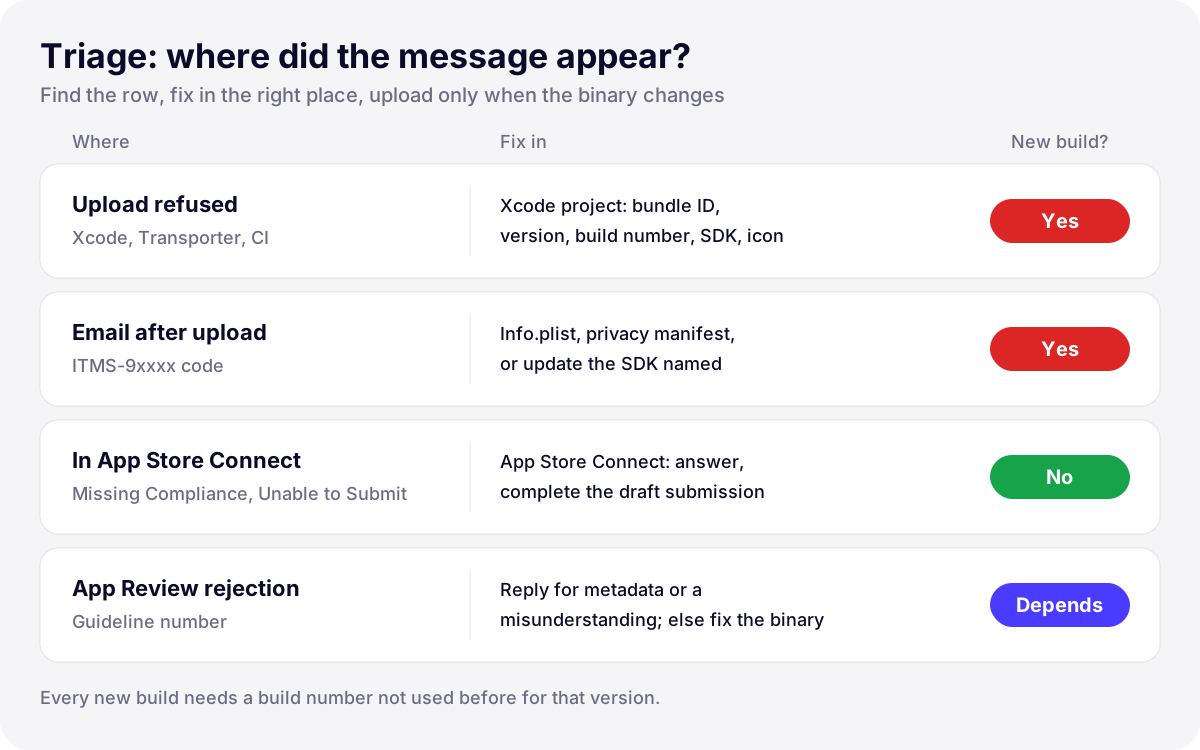
- Upload refused: fix the project, archive again.
- Email after upload: fix
Info.plist, the privacy manifest or the SDK named, then upload with a new build number. - Message in App Store Connect: complete what it asks. No new build.
- Message from App Review: reply in App Store Connect for a misunderstanding or a metadata fix; submit a new build if the binary must change.
How Develak handles App Store Connect errors
Develak publishes more than 30 of its own apps on the App Store, so new Xcode versions, SDK requirements and privacy rules reach every one of them at once. The practical lesson of this guide is that most of these errors can be prevented before upload: commit the encryption key and accurate purpose strings in Info.plist from the first version, let the build pipeline set build numbers, check SDK updates against Apple’s list, and read Apple’s upcoming requirements page before each major Xcode release.
If one of these messages blocks your app, or you’d rather not track Apple’s yearly requirements, our app maintenance service covers Xcode and SDK updates, privacy manifests and submissions. Only Apple decides what is approved, but none of these errors should stop a release for long.
FAQ
Do I need to upload a new build to fix an App Store Connect error?
Only if the binary has to change. Upload errors and ITMS emails (purpose strings, privacy manifests, SDK, icon, version) need a new build with a higher build number. “Missing Compliance”, “Unable to Submit for Review” and metadata-only rejections are fixed in App Store Connect on the existing build.
Why does App Store Connect flag an API my code doesn’t use?
Because the analysis looks at the whole binary, including SDKs. Apple’s ITMS-90683 message says it explicitly: libraries may reference APIs that require a purpose string, and the string is required even if your app doesn’t use them. For ITMS-91053 and ITMS-91061, the email names the file; a path inside Frameworks/ points to an SDK.
Can I reuse a build number?
Not for the same version. Uploading a build number that already exists for that version triggers ITMS-90189: Redundant Binary Upload, even if the first upload never appeared in TestFlight. Increase it on every archive, or let Xcode or your CI manage it.
What does “Unable to Submit for Review” mean?
App Store Connect found something missing in the submission before sending it to App Review. The lines under the heading say what is missing; for subscriptions, a common case is a new group submitted without its subscriptions. Complete each item and click Submit for Review again; no new build is needed.
Building an iOS app?
Native Swift and SwiftUI, from the first sketch to the App Store and beyond.
Start a projectContents