---
title: "Localizable.strings in iOS: Syntax, Errors, String Catalogs"
description: "Localizable.strings explained: \"key\" = \"value\"; syntax, escaping, .lproj folders, lookup, .stringsdict plurals, common errors, plutil -lint and migration."
url: https://develak.com/blog/localizable-strings/
language: en
updated: 2026-11-08
source: Develak
translations:
fr: https://develak.com/fr/blog/fichier-localizable-strings.md
---
Canonical page:
[Guides](https://develak.com/blog/) 13 min read
# Localizable.strings in iOS: format, examples and migrating to String Catalogs (2026)
A practical guide to Localizable.strings on iOS: the exact "key" = "value"; syntax, comments and escaping, en.lproj and Base folders, how NSLocalizedString, String(localized:) and Text look strings up, a minimal .stringsdict, common errors, plutil -lint, and a step-by-step migration to String Catalogs.
Develak studio
Published November 1, 2026 Updated November 8, 2026
[Lire en français](https://develak.com/fr/blog/fichier-localizable-strings/)
`Localizable.strings` is the classic iOS file that holds an app’s translations: one file per language, in a folder such as `en.lproj` or `fr.lproj`, made of lines like `"Settings" = "Réglages";`. Code looks keys up with `NSLocalizedString`, `String(localized:)` or SwiftUI’s `Text`, and by default, when a key is missing, the user sees the key itself. The format still works in 2026, but Apple presents String Catalogs (`.xcstrings`, Xcode 15 and later) as its replacement, and Xcode can migrate a `.strings` file in a few clicks. This guide covers the exact syntax, where the files live, how lookup works, the errors that break a file, how to validate it with `plutil -lint`, and how to migrate.
## Key takeaways
- Each entry is `"key" = "value";`, with a semicolon at the end; quotes and backslashes inside a string are escaped with a backslash.
- One syntax error can make a whole language’s table unreadable: every string of that language then shows its key.
- Save source files as UTF-8; Xcode converts them for the built app (UTF-16 by default).
- Run `plutil -lint` on every `.strings` file before you build or migrate.
- For new work, use a String Catalog; existing files migrate table by table with Migrate to String Catalog (Xcode 15 or later).
## What Localizable.strings is
A strings file is a list of key-value pairs: the key is what your code asks for, the value is the text shown in one language. Apple’s [String Resources](https://developer.apple.com/library/archive/documentation/Cocoa/Conceptual/LoadingResources/Strings/Strings.html) guide names the default one: “The name of the default strings file is `Localizable.strings` but you can create strings files with any file name you choose.” Each file is a *table*, and the table name is the file name without `.strings`: `Localizable` by default, `Settings` for `Settings.strings`.
Plurals need a companion `.stringsdict` file (see below); a String Catalog holds both, for every language, in one file. For the wider workflow, see our [iOS localization guide](https://develak.com/blog/localize-ios-app-xcstrings/).
## Syntax: keys, values, comments and escaping
Apple’s rules are short: key and value are “enclosed in double quotation marks and separated by an equal sign”, “the entire entry must be terminated with a semicolon character”, and comments go “inside C-style comment delimiters (`/*` and `*/`)”, immediately before the entry they describe. A complete French file looks like this:
```
/* fr.lproj/Localizable.strings */
/* Tab title for the list of saved items */
"Saved" = "Enregistrés";
/* Explicit key, so the English word can change without breaking translations */
"settings.title" = "Réglages";
/* %@ is the user's first name */
"Welcome back, %@!" = "Bon retour, %@ !";
/* Positional arguments let translators reorder values */
"%1$@ shared %2$lld photos" = "%2$lld photos partagées par %1$@";
/* Escaped double quotes and a line break */
"file.not.found" = "Le fichier \"%@\" est introuvable.\nVérifiez son nom.";
```
| To write | Type | Example |
| --- | --- | --- |
| A double quote inside a string | `\"` | `"Open \"%@\"?"` |
| A backslash | `\\` | `"C:\\Users"` |
| A line break | `\n` | `"Line 1\nLine 2"` |
| A carriage return | `\r` | Rarely needed on Apple platforms |
| Any Unicode character | `\U` + up to four hex digits | `"\U00A0"` (no-break space) |
| A literal percent sign in a format string | `%%` | `"%lld%% done"` |
*Escape sequences in a strings file (Apple’s String Resources guide; %% is the printf rule)*
The key must match what the code asks for character by character, format specifiers included. A Swift interpolation of an `Int`, as in `String(localized: "\(count) photos")`, produces the key `"%lld photos"`, not `"%d photos"`; a `String` produces `%@`. Apple also accepts strings files in property list format, but the quoted format above is the usual one.
## Where the file lives: en.lproj, fr.lproj and Base.lproj
A localized resource lives in one folder per language, named with the language ID and the `.lproj` extension: `en.lproj`, `fr.lproj`, `pt-BR.lproj`. Each folder has its own `Localizable.strings` with the same keys and translated values. Next to it you may find `Localizable.stringsdict` for plurals and `InfoPlist.strings` for localized `Info.plist` keys such as the display name and permission prompts.
`Base.lproj` is different: Apple’s [internationalization guide](https://developer.apple.com/library/archive/documentation/MacOSX/Conceptual/BPInternational/InternationalizingYourUserInterface/InternationalizingYourUserInterface.html) describes it as the home of storyboards and XIBs in the development language (“base internationalization”), with per-language strings files generated for them. Strings used in code belong in `Localizable.strings`.
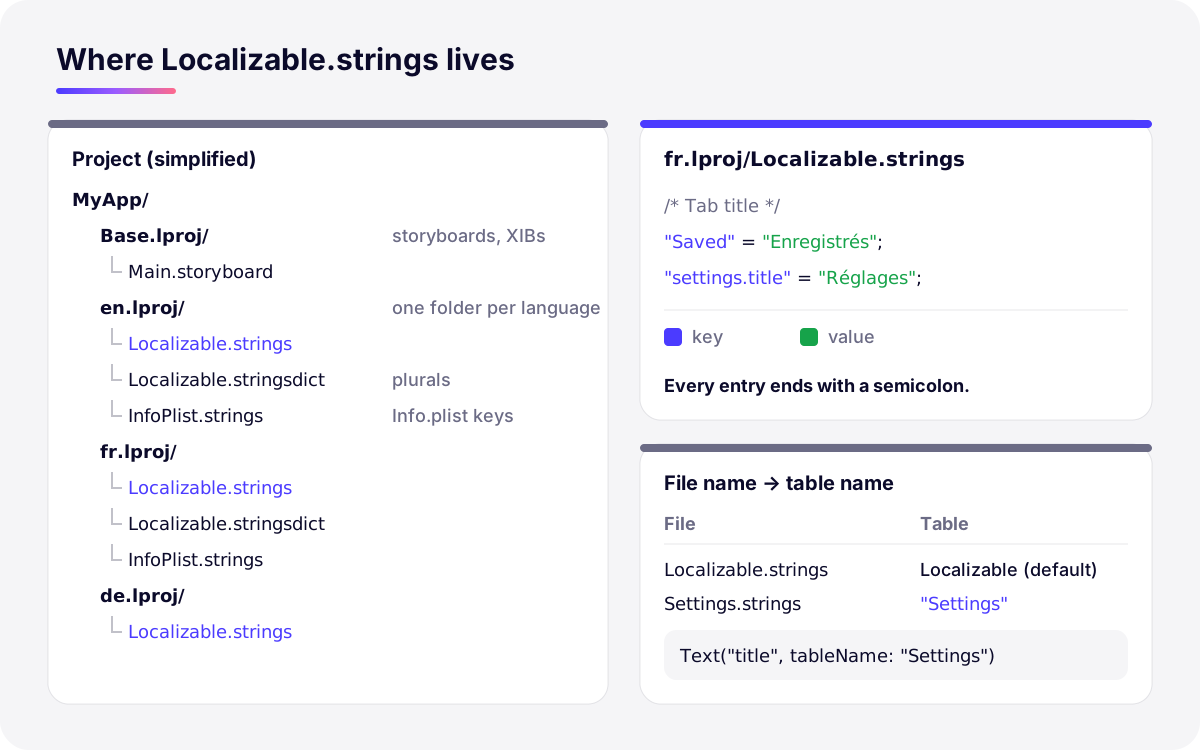
*Illustration: where strings files sit in a project and how file names map to table names (simplified, not an Xcode screenshot).*
## InfoPlist.strings: the app name and permission prompts
`InfoPlist.strings` translates the user-facing keys of `Info.plist`, which `Localizable.strings` cannot reach. It uses the same `"key" = "value";` syntax and sits in the same `.lproj` folders, but its keys are the raw `Info.plist` key names. The value written in `Info.plist` itself stays the fallback for the development language.
```
/* fr.lproj/InfoPlist.strings */
/* Name under the icon on the Home Screen */
"CFBundleDisplayName" = "Mon Carnet";
/* Camera permission prompt */
"NSCameraUsageDescription" = "L’appareil photo sert à scanner l’étiquette d’un produit.";
```
- **App name:** `CFBundleDisplayName` is the name under the icon. The App Store name is separate and set per language in App Store Connect.
- **Permission prompts:** every `NS…UsageDescription` key, such as camera, microphone, location or Health, shown in the system alert that asks for access.
- **Create it:** add a Strings File named `InfoPlist`, then click Localize in the File inspector and tick each language.
- **With String Catalogs:** `InfoPlist.xcstrings` replaces it, and Xcode fills in the localizable keys for you. See [InfoPlist.xcstrings in our localization guide](https://develak.com/blog/localize-ios-app-xcstrings/#infoplist-permission-strings).
## How to create a Localizable.strings file
For a new project, create a String Catalog instead (File › New › File from Template › String Catalog). If you need a legacy file, for example to match the rest of an existing project:
1. Choose File › New › File from Template, type *strings* in the filter field and pick the strings file template (not String Catalog). Name it `Localizable` so it becomes the default table.
2. Select it in the Project navigator, open the File inspector and click Localize under Localization, then choose the development language. Apple’s [plurals article](https://developer.apple.com/documentation/xcode/localizing-strings-that-contain-plurals) describes the same steps for a `.stringsdict` file.
3. Tick the other languages in the same panel; each adds a copy in its `.lproj` folder. The project’s languages are listed in the project editor, Info tab, under Localizations.
4. Check that the file belongs to the right target (Target Membership in the File inspector), otherwise it never reaches the app.
## How iOS looks up a string: NSLocalizedString, String(localized:) and Text
Every API takes a key, a table and a bundle. The table defaults to `Localizable`; to read `Settings.strings`, pass `"Settings"`.
```swift
// SwiftUI: a literal is a LocalizedStringKey, looked up in Localizable.strings
Text("Saved")
Text("settings.title", tableName: "Settings")
// Swift outside views (iOS 15 and later)
let title = String(localized: "settings.title", table: "Settings",
comment: "Title of the Settings screen")
let toast = String(localized: "Welcome back, \(name)!") // key: "Welcome back, %@!"
// Foundation, any iOS version: value is returned if the key is missing
let saved = NSLocalizedString("Saved", value: "Saved",
comment: "Tab title for the list of saved items")
// In a Swift package, look strings up in the package's own bundle
Text("Saved", bundle: .module)
```
| API | Table parameter | If the key is not found |
| --- | --- | --- |
| `Text(_:tableName:bundle:comment:)` | `tableName` | Displays the key |
| `String(localized:table:bundle:locale:comment:)` | `table` | The key also serves as the default value |
| `String(localized:defaultValue:table:…)` | `table` | Returns `defaultValue` |
| `NSLocalizedString(_:tableName:bundle:value:comment:)` | `tableName` | Returns `value`, or the key if `value` is empty |
| `Bundle.localizedString(forKey:value:table:)` | `table` | Same as `NSLocalizedString` |
*Lookup APIs and their fallback (Apple documentation for Text, String, NSLocalizedString and Bundle)*
The bundle picks the language folder: [preferredLocalizations](https://developer.apple.com/documentation/foundation/bundle/preferredlocalizations) orders the app’s localizations by the user’s preferences, and [CFBundleDevelopmentRegion](https://developer.apple.com/documentation/bundleresources/information-property-list/cfbundledevelopmentregion) is used “if it can’t locate a resource for the user’s preferred language”. A missing key is not looked up in English: Apple’s documentation of [localizedString(forKey:value:table:)](https://developer.apple.com/documentation/foundation/bundle/localizedstring%28forkey:value:table:%29) says the method returns the key when it isn’t found and no value was given. Readable keys (“Saved”) therefore degrade better than technical ones (“tab.saved”) unless you pass a default value.
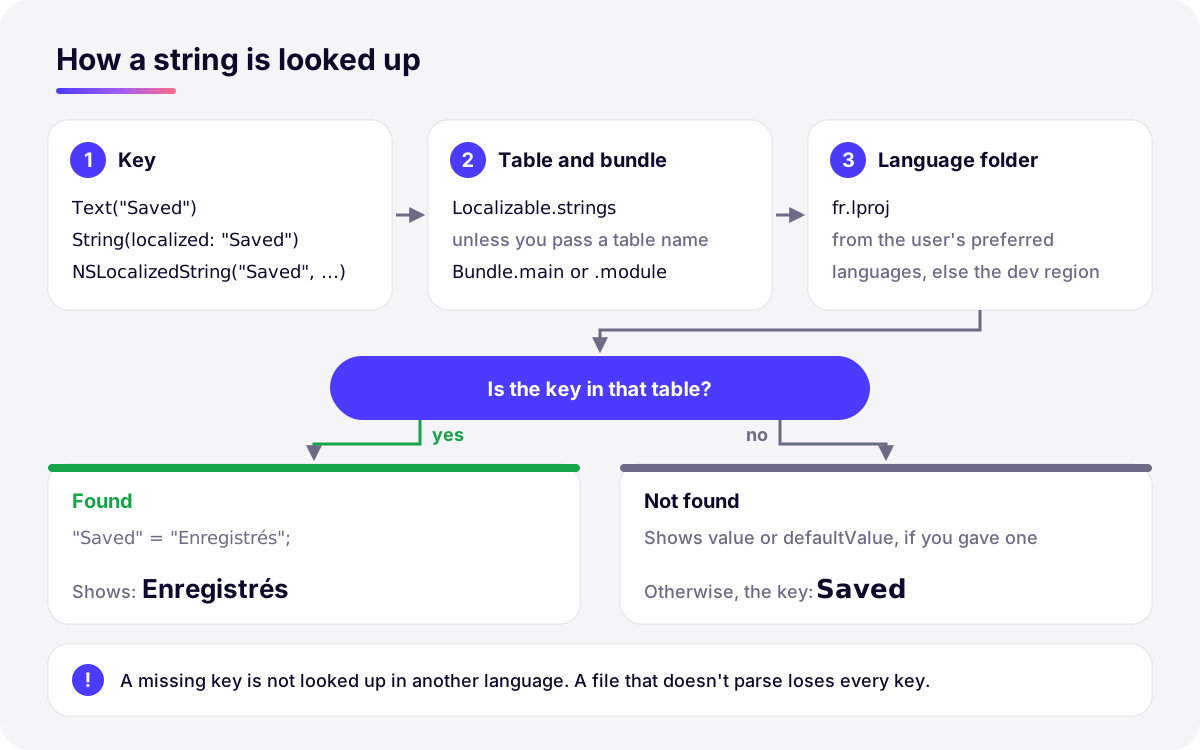
*Illustration: from key to displayed text, and what users see when a key is missing (simplified).*
## Plurals: a minimal .stringsdict
A `.strings` file can’t vary a sentence by quantity. `Localizable.stringsdict`, a property list in the same `.lproj` folder, maps the format key to one string per plural category. The smallest useful French version:
```xml
%lld photos
NSStringLocalizedFormatKey
%#@photos@
photos
NSStringFormatSpecTypeKey
NSStringPluralRuleType
NSStringFormatValueTypeKey
lld
one
%lld photo
other
%lld photos
```
```swift
// Swift: the interpolated Int becomes %lld, matching the .stringsdict key
Text("\(count) photos")
let label = String(localized: "\(count) photos")
// Foundation: format the looked-up string with the count
let format = NSLocalizedString("%lld photos", comment: "Number of photos in an album")
let text = String.localizedStringWithFormat(format, count)
```
In French, the `one` form also covers zero (“0 photo”), as defined by the [Unicode CLDR plural rules](https://www.unicode.org/cldr/charts/latest/supplemental/language_plural_rules.html); Russian needs `one`, `few`, `many` and `other`. String Catalogs replace this whole property list with Vary by Plural on the key, as described in our [guide to plurals in String Catalogs](https://develak.com/blog/localize-ios-app-xcstrings/#plurals-device-variations).
## Common errors and how to fix them
| Symptom | Likely cause | Fix |
| --- | --- | --- |
| Every string of one language shows its key | Syntax error somewhere in that language’s file | `plutil -lint` the file and fix the entry it points to |
| One string shows its key | Key missing from that table, or spelled differently in code | Add the key; compare punctuation and specifiers (`%lld`, `%@`) |
| Accented characters break the file | File saved in a legacy encoding such as Latin-1 | Re-save as UTF-8 |
| A translation is silently wrong | Duplicate key in the same file | Find duplicates and keep one entry |
| Nothing is ever translated | File not in the target, wrong table name or wrong bundle | Check Target Membership, `tableName` and `bundle` |
*Localizable.strings problems at a glance*
### Missing semicolon or unescaped quote
The most common break: a line without its final `;`, an unescaped quote inside a value, or curly quotes (“ ”) pasted as delimiters. The file can’t be parsed, so the whole table is lost for that language. In our test with a Swift package built by Xcode 27.2, a French file missing one semicolon still built without a warning, and at runtime every French lookup returned its key. `plutil` catches it immediately:
```
$ plutil -lint fr.lproj/Localizable.strings
fr.lproj/Localizable.strings: (Unexpected character " at line 1)
```
Don’t trust the line number: in our tests it said “line 1” for an error on line 4. Look at the end of each entry instead, starting with the last ones you edited.
### Encoding: UTF-8 or UTF-16?
Save the file you edit in UTF-8. Apple’s [Strings File Output Encoding](https://developer.apple.com/documentation/xcode/build-settings-reference#Strings-File-Output-Encoding) build setting says the output default is UTF-16 and that “It is recommended that the source file be in UTF-8 encoding”, which Xcode converts at build time; processing fails if the file can’t be converted. UTF-16 is the format of the copy inside the built app, not something to produce yourself. A file saved as Latin-1 with accented letters fails `plutil -lint` with the same “Unexpected character” message.
### Duplicate keys
Apple’s rule is that “within a single strings file, each key must be unique”. `genstrings` warns about duplicates, but a hand-edited file doesn’t: `plutil -lint` reported OK on a file with the same key twice, and in our runtime test the second value won. List duplicates with:
```
grep -o '^"[^"]*"' fr.lproj/Localizable.strings | sort | uniq -d
```
### “Localizable.strings not working”: the key shows instead of the translation
1. **Lint every language**, then **compare the key**: it must match exactly, including punctuation, spaces and format specifiers.
2. **Check the table and bundle.** A file named `Strings.strings` is the table `Strings`; code in a framework or package needs its own bundle (`.module` in a Swift package), since the main bundle is the default.
3. **Check Target Membership and Localization** in the File inspector, and that the language appears in the project’s Localizations.
4. **Look for string variables.** `Text(label)` with a `String` variable is displayed as-is; Apple’s [Text documentation](https://developer.apple.com/documentation/swiftui/text/init%28_:tablename:bundle:comment:%29) suggests `Text(LocalizedStringKey(label))` if you want it looked up.
5. **Make missing keys visible.** With the `NSShowNonLocalizedStrings` user default set to YES, Apple documents that a missing string is logged and its key capitalized. In the scheme editor, Run › Options › “Show non-localized strings” helps spot untranslated text while debugging.
## Validate with plutil -lint
Apple’s String Resources guide recommends it: “Running `plutil` with the `-lint` option can uncover hidden characters or other errors that are preventing strings from being retrieved correctly.” Run it on every strings file, locally or in CI:
```
# Check every .strings file under the current folder
find . -name "*.strings" -exec plutil -lint {} +
# A valid file prints:
# ./MyApp/fr.lproj/Localizable.strings: OK
# Count the entries of one language, to compare with another
plutil -convert json -o - fr.lproj/Localizable.strings | python3 -c 'import json,sys; print(len(json.load(sys.stdin)))'
```
`plutil` only checks that the file parses: it doesn’t flag duplicate keys, missing translations or mismatched placeholders.
## Keep Localizable.strings or migrate?
Apple says in its [Discover String Catalogs](https://developer.apple.com/videos/play/wwdc2023/10155/) session (WWDC23) that “over time, this new format will supersede both strings and stringsdict files”, that catalogs compile to `.strings` and `.stringsdict` at build time, so the minimum deployment target doesn’t change, and that they can coexist with the legacy formats. Nor is Xcode a reason to wait: since April 28, 2026, App Store uploads must be built with Xcode 26 or later (Apple’s [upcoming requirements](https://developer.apple.com/news/upcoming-requirements/)).
| Your situation | Recommendation |
| --- | --- |
| New app or new table | String Catalog from the start |
| Existing app in active development | Migrate `Localizable` first, other tables later |
| Release freeze or a big branch in flight | Keep the files for now and migrate after the merge, in one reviewable diff |
| A translation tool that only reads `.strings` | Check whether it accepts `.xcstrings` or XLIFF from Export Localizations; keep the files until it does |
| Plurals or device-specific text you maintain by hand | Migrate: Vary by Plural and Vary by Device replace the `.stringsdict` |
*When to keep Localizable.strings and when to move to a String Catalog*
## Migrate Localizable.strings to a String Catalog, step by step
1. **Lint first.** Run `plutil -lint` on every language and fix errors, so that every translation can be read. Note the entry count per language.
2. **Commit or branch**, to review or revert the migration as one diff.
3. **Right-click (or Control-click) `Localizable.strings`** in the Project navigator and choose **Migrate to String Catalog**, in Xcode 15 or later.
4. **Pick the tables.** In Apple’s WWDC23 demo, the Migration Assistant lists “all the migratable files” by target; select `Localizable`, other tables when you’re ready.
5. **Let Xcode build.** It builds to extract strings; in Apple’s demo, all the strings of the strings file “and even the plurals from the stringsdict file” end up in `Localizable.xcstrings`.
6. **Compare counts.** The catalog’s key count should match the source language’s entry count from step 1:
`python3 -c 'import json; print(len(json.load(open("Localizable.xcstrings"))["strings"]))'`
7. **Clean up.** Leave no `.strings` or `.stringsdict` file with the same table name in any `.lproj` folder, then run the app in each language.
Your code doesn’t change, since the table is still called `Localizable`. The full checklist, including the build setting to check, is in the [Localizable.strings to String Catalogs section](https://develak.com/blog/localize-ios-app-xcstrings/#localizable-strings-to-string-catalogs) of our localization guide.
## After the migration: translating the catalog
Once your strings are in a `.xcstrings` file, our Mac app [Xlocalize](https://develak.com/apps/xlocalize/) translates it directly with OpenAI, Anthropic Claude or Google Gemini, using your own API key stored in the macOS Keychain. It preserves plurals, device variations and substitutions, and flags placeholder mismatches and missing translations. It works on String Catalogs, not on `.strings` files: one more reason to migrate first. It runs on macOS 14 or later and is free to download, with optional in-app purchases.
To hand over the whole job, from migration to on-device review and the localized App Store listing, see our [app localization service](https://develak.com/services/app-localization/).
## FAQ
### What is Localizable.strings?
The default strings file of an iOS or macOS app: `"key" = "value";` entries, one copy per language in folders such as `en.lproj` and `fr.lproj`. `NSLocalizedString`, `String(localized:)` and `Text` read its table, `Localizable`, unless you pass another.
### How do I create a Localizable.strings file in Xcode?
Choose File › New › File from Template, filter on *strings*, pick the strings file template and name it `Localizable`. Then click Localize in the File inspector and tick each language. For a new project, create a String Catalog (`Localizable.xcstrings`) instead, which Xcode fills on every build.
### Why is my Localizable.strings not working?
If every string of a language shows its key, the file doesn’t parse: run `plutil -lint` and look for a missing semicolon or an unescaped quote. Otherwise, check that the key matches exactly, that the file is in the target, and the table name, the bundle and any `String` variable passed to `Text`, as in the checklist above.
### Is Localizable.strings deprecated?
Not formally: it still works, and String Catalogs themselves become `.strings` and `.stringsdict` files at build time. But Apple calls String Catalogs the recommended way to localize plurals in Xcode 15 and later, and said at WWDC23 that the new format will supersede strings and stringsdict files over time.
### Localizable.strings or Localizable.xcstrings: which should I use?
`Localizable.xcstrings` for new work: one file for every language, plurals included, kept in sync with your code at each build. Keep `Localizable.strings` only while your workflow depends on it, then use Migrate to String Catalog.
### What is InfoPlist.strings?
It is the strings file that translates `Info.plist` values: the app name under the icon (`CFBundleDisplayName`) and the permission prompts (`NSCameraUsageDescription` and the other `NS…UsageDescription` keys). Each language gets its own copy in its `.lproj` folder, with the `Info.plist` key names as keys. In a String Catalog project, `InfoPlist.xcstrings` does the same job. See InfoPlist.strings.
Written by
## The Develak studio
Develak is an independent iOS app studio. We have published 35 apps on the App Store since 2025, in up to 44 languages, and we write these guides from that hands-on experience.
[See our 35 apps](https://develak.com/apps/) [About the studio](https://develak.com/about/)
## More iOS guides
[All guides](https://develak.com/blog/)
Guides 13 min read
### [App Store Connect errors: what they mean and how to fix them (2026)](https://develak.com/blog/app-store-connect-errors/)
The App Store Connect and upload errors iOS developers hit most often, with their exact wording, what they mean and how to fix them: ITMS-90683, ITMS-91053, ITMS-91061, ITMS-90725, ITMS-90717, ITMS-90189, ITMS-90062, Missing Compliance, Unable to Submit for Review and guideline 2.1 crashes.
October 24, 2026
Guides 12 min read
### [TestFlight guide (2026): internal and external testers, Beta App Review and public links](https://develak.com/blog/testflight-guide/)
How TestFlight works in 2026: internal vs external testers, groups, public links and tester criteria, Beta App Review, uploading and processing builds, export compliance, feedback and crashes, and fixes for Missing Compliance, stuck processing and expired builds.
October 3, 2026
Guides 13 min read
### [iOS privacy manifest (PrivacyInfo.xcprivacy) in 2026: required reason APIs, SDKs and ITMS-91053](https://develak.com/blog/ios-privacy-manifest/)
A practical 2026 guide to the iOS privacy manifest: the four PrivacyInfo.xcprivacy keys, every required reason API code, third-party SDK manifests and signatures, the Xcode privacy report, and how to fix ITMS-91053 and the other upload emails.
October 3, 2026
## Turn this guide into a shipped app
Develak designs, builds and publishes native iOS apps for founders and teams worldwide, in English or French.
[Start a project](https://develak.com/contact/) [contact@develak.com](mailto:contact@develak.com)
---
*Markdown version of for AI assistants, published by Develak. Links lead to the web pages; add .md to a page URL for its Markdown version. Site index: .*