---
title: "App Store Screenshot Sizes 2026: iPhone, iPad, Mac Specs"
description: "App Store screenshot sizes for 2026: 6.9-inch iPhone 1320 × 2868, 13-inch iPad 2064 × 2752, Mac, Watch, TV, Vision Pro, app previews and a full table."
url: https://develak.com/blog/app-store-screenshot-sizes/
language: en
updated: 2026-10-03
source: Develak
translations:
fr: https://develak.com/fr/blog/tailles-captures-app-store.md
---
Canonical page:
[Guides](https://develak.com/blog/) 15 min read
# App Store screenshot sizes (2026): every iPhone, iPad, Mac, Watch, TV and Vision Pro dimension
The complete 2026 reference for App Store screenshot and app preview specifications: 6.9-inch iPhone and 13-inch iPad pixel sizes, Mac, Apple Watch, Apple TV and Vision Pro, how scaling works, file formats, localization and how to design the first three screenshots.
Develak studio
Published October 3, 2026
[Lire en français](https://develak.com/fr/blog/tailles-captures-app-store/)
In 2026, an iPhone app needs one set of 6.9-inch screenshots: 1320 × 2868, 1290 × 2796 or 1260 × 2736 pixels in portrait (or the same sizes turned to landscape). If the app runs on iPad, add 13-inch iPad screenshots at 2064 × 2752 or 2048 × 2732 pixels. Upload 1 to 10 PNG or JPEG images per device size and language, with no transparency, and App Store Connect scales them down to every smaller display. App previews are optional: up to three videos of 15 to 30 seconds per device size and language.
## Key takeaways
- **iPhone:** upload the 6.9-inch size. Apple only asks for 6.5-inch screenshots when no 6.9-inch set is provided, and all smaller iPhones are scaled from these.
- **iPad:** 13-inch screenshots (2064 × 2752 or 2048 × 2732) are required as soon as the app runs on iPad.
- **Files:** .png, .jpg or .jpeg, exactly one of the accepted pixel sizes, no alpha channel, 1 to 10 per size and language.
- **App previews:** 15 to 30 seconds, up to 3 per size and language, 500 MB maximum, 30 fps maximum; 886 × 1920 on modern iPhones and 1200 × 1600 on 13-inch iPads.
- **Conversion:** depending on orientation, the first one to three screenshots appear in search results when there is no app preview, so they carry most of the message.
- **Localization:** a new language starts with the primary language’s screenshots; upload a translated set for every market that matters.
## The sizes you actually have to upload
Apple’s [Screenshot specifications](https://developer.apple.com/help/app-store-connect/reference/app-information/screenshot-specifications) page lists more than a dozen display sizes, but most apps only need one or two of them. Everything else is either derived automatically or only matters for a platform you don’t ship on.
| Your app runs on | Upload | Accepted sizes (pixels) |
| --- | --- | --- |
| iPhone | 6.9-inch display | 1320 × 2868, 1290 × 2796 or 1260 × 2736 (portrait), or the landscape equivalents |
| iPad | 13-inch display | 2064 × 2752 or 2048 × 2732 (portrait), or 2752 × 2064 / 2732 × 2048 |
| Mac | Mac, 16:10 | 1280 × 800, 1440 × 900, 2560 × 1600 or 2880 × 1800 |
| Apple Watch | One watch size, the same in every localization | From 312 × 390 to 422 × 514, depending on the model |
| Apple TV | Apple TV | 1920 × 1080 or 3840 × 2160 |
| Apple Vision Pro | Apple Vision Pro | 3840 × 2160 |
*Minimum screenshot set per platform (App Store Connect Help, checked October 2026)*
One nuance about iPhone. On the current page, the 6.9-inch entry carries no “required” label; the requirement sits on the 6.5-inch entry, which is “required if app runs on iPhone and screenshots for 6.9″ display aren’t provided”. In other words, you need one of the two, and 6.9-inch is the better choice because every other iPhone size can be scaled from it.
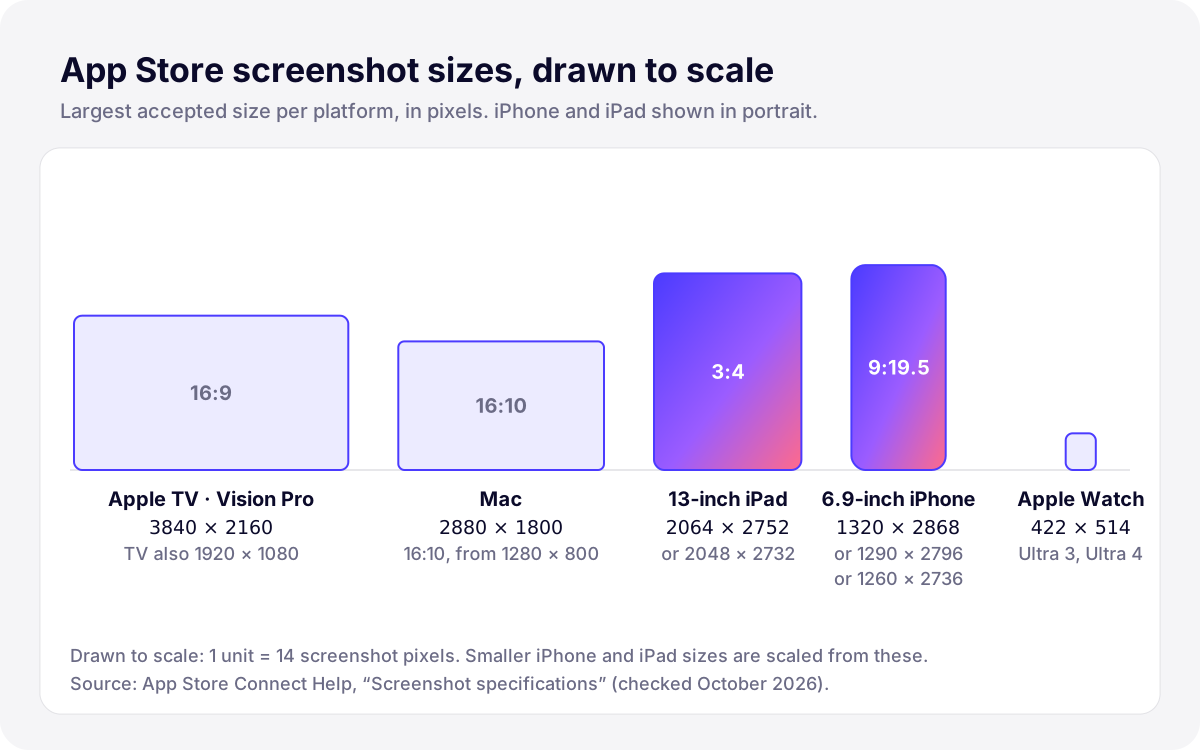
*Illustration: the largest accepted screenshot size for each platform, drawn to the same scale.*
## Full table of App Store screenshot dimensions
Here is every size App Store Connect accepts, as published by Apple in October 2026. The last column tells you what happens if you skip that size. Device lists are shortened where Apple’s are long.
### iPhone screenshot sizes
| Display | Devices | Portrait (px) | Landscape (px) | If not provided |
| --- | --- | --- | --- | --- |
| 6.9″ | iPhone Air, iPhone 18 Pro Max, 17 Pro Max, 16 Pro Max, 16 Plus, 15 Pro Max, 15 Plus, 14 Pro Max | 1320 × 2868
1290 × 2796
1260 × 2736 | 2868 × 1320
2796 × 1290
2736 × 1260 | Upload this size |
| 6.5″ | iPhone 14 Plus, 13 Pro Max, 12 Pro Max, 11 Pro Max, 11, XS Max, XR | 1284 × 2778
1242 × 2688 | 2778 × 1284
2688 × 1242 | Scaled from 6.9″ (required only if there is no 6.9″ set) |
| 6.3″ | iPhone 18 Pro, 17 Pro, 17, 16 Pro, 16, 15 Pro, 15, 14 Pro | 1206 × 2622
1179 × 2556 | 2622 × 1206
2556 × 1179 | Scaled from 6.5″ |
| 6.1″ | iPhone 17e, 16e, 14, 13 Pro, 13, 13 mini, 12 Pro, 12, 12 mini, 11 Pro, XS, X | 1170 × 2532
1125 × 2436
1080 × 2340 | 2532 × 1170
2436 × 1125
2340 × 1080 | Scaled from 6.5″ |
| 5.5″ | iPhone 8 Plus, 7 Plus, 6s Plus, 6 Plus | 1242 × 2208 | 2208 × 1242 | Scaled from 6.1″ |
| 4.7″ | iPhone SE (2nd and 3rd generation), 8, 7, 6s, 6 | 750 × 1334 | 1334 × 750 | Scaled from 5.5″ |
| 4″ | iPhone SE (1st generation), 5s, 5c, 5 | 640 × 1136
640 × 1096 without status bar | 1136 × 640
1136 × 600 without status bar | Scaled from 4.7″ |
| 3.5″ | iPhone 4s, 4 | 640 × 960
640 × 920 without status bar | 960 × 640
960 × 600 without status bar | Scaled from 4″ |
*iPhone screenshot sizes accepted by App Store Connect*
At the time of writing, Apple’s page also lists an “iPhone Duo” with an outer display (1398 × 2034) and an inner display (2007 × 2853), with a note that uploads for this device will be supported in App Store Connect later this year. Keep an eye on that entry if your app targets it.
### iPad screenshot sizes
| Display | Devices | Portrait (px) | Landscape (px) | If not provided |
| --- | --- | --- | --- | --- |
| 13″ | iPad Pro (M5, M4), iPad Pro (1st, 3rd to 6th generation), iPad Air (M4, M3, M2) | 2064 × 2752
2048 × 2732 | 2752 × 2064
2732 × 2048 | Required if the app runs on iPad |
| 12.9″ | iPad Pro (2nd generation) | 2048 × 2732 | 2732 × 2048 | Scaled from 13″ |
| 11″ | iPad Pro (M5, M4, 1st to 4th generation), iPad Air (M4, M3, M2, 4th and 5th generation), iPad (A16, 10th generation), iPad mini (A17 Pro, 6th generation) | 1488 × 2266
1668 × 2420
1668 × 2388
1640 × 2360 | 2266 × 1488
2420 × 1668
2388 × 1668
2360 × 1640 | Scaled from 13″ |
| 10.5″ | iPad Pro, iPad Air (3rd generation), iPad (7th to 9th generation) | 1668 × 2224 | 2224 × 1668 | Scaled from 12.9″ |
| 9.7″ | Older iPad, iPad Air, iPad Air 2, iPad mini 2 to 5 | 1536 × 2048 (or 1536 × 2008)
768 × 1024 (or 768 × 1004) | 2048 × 1536 (or 2048 × 1496)
1024 × 768 (or 1024 × 748) | Scaled from 10.5″ |
*iPad screenshot sizes accepted by App Store Connect (the smaller 9.7″ values are the versions without status bar)*
### Mac, Apple Watch, Apple TV and Apple Vision Pro
| Platform | Accepted sizes (pixels) | Requirement |
| --- | --- | --- |
| Mac | One of 1280 × 800, 1440 × 900, 2560 × 1600, 2880 × 1800 (16:10) | Required for Mac apps |
| Apple TV | 1920 × 1080 or 3840 × 2160 | Required for Apple TV apps |
| Apple Vision Pro | 3840 × 2160 | Required for Apple Vision Pro |
| Apple Watch | 422 × 514 (Ultra 4, Ultra 3)
410 × 502 (Ultra 2, Ultra)
416 × 496 (Series 12, 11, 10)
396 × 484 (Series 9, 8, 7)
368 × 448 (Series 6, 5, 4, SE 3, SE 2, SE)
312 × 390 (Series 3, 2, 1) | Required for Apple Watch apps; use the same size in every localization |
*Screenshot sizes for Mac, Apple TV, Apple Vision Pro and Apple Watch*
## How scaling from the largest size works
App Store Connect works as a cascade. Apple’s [upload guide](https://developer.apple.com/help/app-store-connect/manage-app-information/upload-app-previews-and-screenshots) puts it simply: if your interface is the same across device sizes and localizations, provide only the highest-resolution screenshots required, and they automatically scale down to smaller device sizes. Each smaller size borrows from the next size up:
- **iPhone:** 6.9″ → 6.5″ → 6.3″ and 6.1″ → 5.5″ → 4.7″ → 4″ → 3.5″.
- **iPad:** 13″ → 12.9″ and 11″; 12.9″ → 10.5″ → 9.7″.
Scaling keeps your layout but not the device’s shape. A 6.9-inch screenshot is close to 9:19.5, while the 5.5-inch and 4.7-inch phones are 9:16, so check how your images look once scaled to those older sizes. If you still care about small phones, or if your app’s layout really differs on them (an iPhone SE layout, a compact iPad split view), open **View All Sizes in Media Manager** and upload dedicated screenshots for those sizes. The same tool shows you the scaled versions, which is the quickest way to check that captions are still readable.
Two rules to remember: you can only change screenshots while the version is editable (Prepare for Submission, Rejected, Metadata Rejected, Developer Rejected or Invalid Binary), and once a version is approved you must create a new version to update them. Plan screenshot refreshes together with an update.
## File format, count and the transparency trap
- **Formats:** .png, .jpg and .jpeg.
- **Count:** a minimum of one and a maximum of ten screenshots per device size and language.
- **Dimensions:** exactly one of the accepted sizes. 1320 × 2867 is rejected, and so is a nice 1242 × 2688 render uploaded into the 6.9-inch slot.
- **No transparency:** Apple’s specification says images can’t include alpha channels or transparencies. Design tools often export PNGs with an alpha channel even when every pixel is opaque.
On a Mac, `sips` checks a whole folder before upload, and converting to JPEG removes the alpha channel:
```
# Check size and alpha channel of every screenshot
sips -g pixelWidth -g pixelHeight -g hasAlpha screenshots/en-US/*.png
# Convert one file to JPEG (no alpha channel)
sips -s format jpeg 01-main.png --out 01-main.jpg
```
Keep the images free of anything App Review frowns upon. Guideline 2.3.3 asks that screenshots show the app in use, “not merely the title art, login page, or splash screen”, while allowing text and image overlays. Guideline 2.3.7 says metadata such as screenshots should not include prices, and 2.3.10 forbids imagery of other mobile platforms. Our [App Store submission checklist](https://develak.com/blog/app-store-submission-checklist/) covers the rest of the metadata Apple reviews.
## App preview video specifications
App previews are optional short videos shown before your screenshots. According to Apple’s [App preview specifications](https://developer.apple.com/help/app-store-connect/reference/app-information/app-preview-specifications):
| Property | Specification |
| --- | --- |
| Number | Up to 3 per device size and language |
| Length | 15 to 30 seconds |
| File size | 500 MB maximum |
| Codec and container | H.264 (.mov, .m4v, .mp4) or ProRes 422 HQ (.mov) |
| Frame rate | 30 frames per second maximum |
| H.264 bit rate | 10–12 Mbps target, progressive, up to High Profile Level 4.0 |
| Audio | Stereo; 256 kbps AAC (PCM also accepted with ProRes), 44.1 or 48 kHz |
| Poster frame | Defaults to the frame at 5 seconds; you can choose another |
| Orientation | Portrait or landscape on iPhone and iPad; landscape only on Mac, Apple TV and Vision Pro |
*App preview requirements in App Store Connect*
| Display | Accepted preview resolution (portrait / landscape) |
| --- | --- |
| iPhone 6.9″, 6.5″, 6.3″, 6.1″ | 886 × 1920 / 1920 × 886 |
| iPhone 5.5″ and 4″ | 1080 × 1920 / 1920 × 1080 |
| iPhone 4.7″ | 750 × 1334 / 1334 × 750 |
| iPhone 3.5″ | App previews not supported |
| iPad 13″, 11″, 10.5″ | 1200 × 1600 / 1600 × 1200 |
| iPad 12.9″ | 1200 × 1600 / 1600 × 1200, or 900 × 1200 / 1200 × 900 |
| iPad 9.7″ | 900 × 1200 / 1200 × 900 |
| Mac and Apple TV | 1920 × 1080 (landscape) |
| Apple Vision Pro | 3840 × 2160 (landscape) |
*App preview resolutions per display size*
Previews follow the same cascade as screenshots: a 6.9-inch preview is scaled for smaller iPhones if you don’t provide one for them. Guideline 2.3.4 adds that previews may only use video screen captures of the app itself, with optional narration and text overlays. Apple’s product page guide notes that previews autoplay with muted audio, so the first seconds have to work without sound. Processing after upload can take up to 24 hours.
## Designing the first three screenshots
Correct sizes get you through App Store Connect; the content of the first images decides whether people tap “Get”. Apple’s [product page guidance](https://developer.apple.com/app-store/product-page/) says that, depending on orientation, the first one to three screenshots appear in search results when no app preview is available, and recommends focusing each following screenshot on one main benefit or feature. With a portrait set, that means up to three images side by side in search: those three images are your ad.
1. **Lead with the benefit, not the feature.** “Never miss a dose” says more than “Reminder settings”. The caption answers why, the screen underneath proves how.
2. **One idea per screenshot.** A caption of three to six words, set large enough to read on a search result thumbnail. If you need a second line, the idea is probably two screenshots.
3. **Put the strongest reason first.** Screenshot 1 is the main promise, screenshot 2 the overview of the app, screenshot 3 the feature people search for. Trust signals (privacy, no account, offline) and secondary features go further right.
4. **Show the real interface.** Use realistic, generic sample data, never features that are not in the build, and keep the status bar clean.
5. **Keep one visual system.** Same caption position, typeface and background family across the set; Apple also suggests including a Dark Mode screenshot if your app supports it.
6. **Test instead of guessing.** Product page optimization in App Store Connect shows alternate screenshot sets to a share of visitors and reports the results in App Analytics. Custom product pages let you match screenshots to a specific campaign or audience.
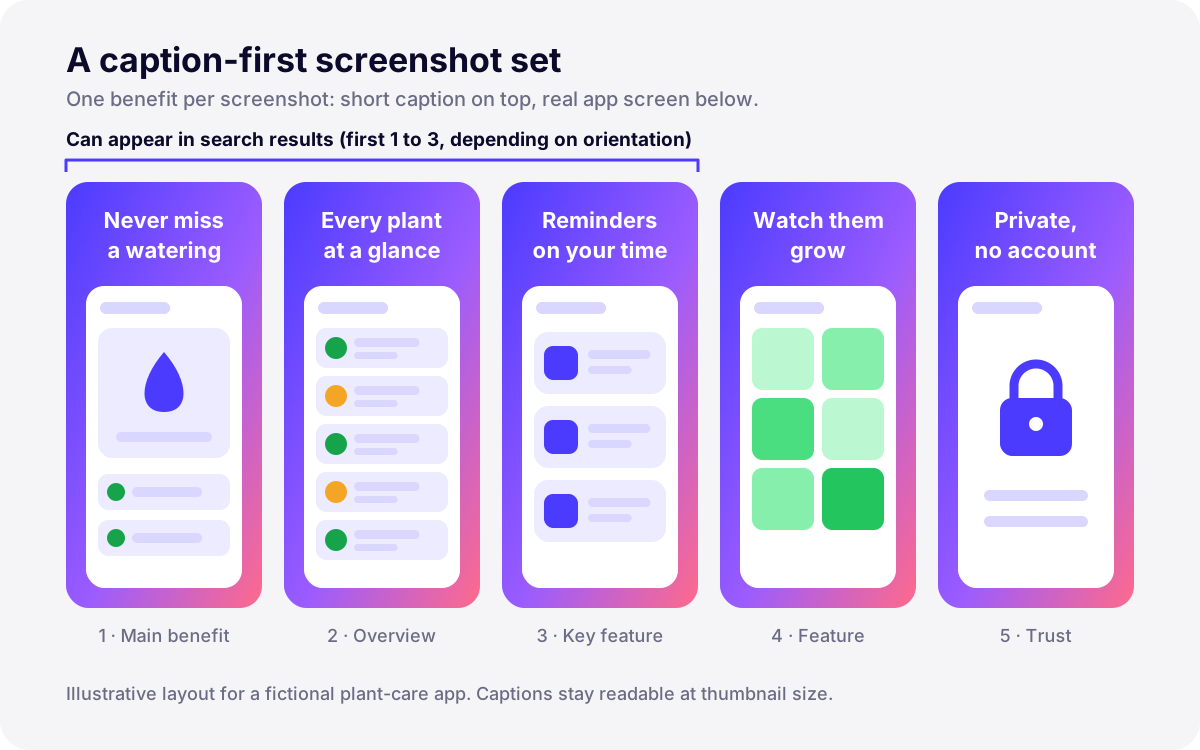
*Illustration: a caption-first set for a fictional app, one benefit per screenshot, the first three doing the selling.*
We deliberately give no conversion percentages here: results vary by category, audience and market, and the only numbers worth trusting are the ones from your own product page tests. Writing captions and choosing the order is the core of our [App Store Optimization service](https://develak.com/services/app-store-optimization/), together with keyword research for each market.
## Localizing screenshots for each language
Screenshots are localizable metadata, separate from the localization of the app binary. App Store Connect supports 50 languages and locales for the product page. As Apple’s [localization guide](https://developer.apple.com/help/app-store-connect/manage-app-information/localize-app-information) explains, when you add a language, its screenshots default to those of the primary language. A German user would therefore see your English captions until you upload a German set.
- **Translate the captions and capture the UI in that language.** A German caption above an English interface looks unfinished. UI tests can launch the app in each language, which our guide to [localizing an iOS app with String Catalogs](https://develak.com/blog/localize-ios-app-xcstrings/) shows.
- **Plan for text expansion.** German and Finnish captions run longer than English; Japanese and Chinese need a different line-break logic. Leave room in the caption area rather than shrinking the font.
- **Mirror for right-to-left languages.** Arabic and Hebrew screenshots should show the mirrored interface and right-aligned captions.
- **Localize previews where they matter.** If a localization has no app preview, the App Store shows the preview from the next best available language.
- **Keep sizes consistent.** Apple Watch screenshots must use the same size across all localizations, and changing the primary language later requires approved screenshots in that language with the same sizes as the current primary language.
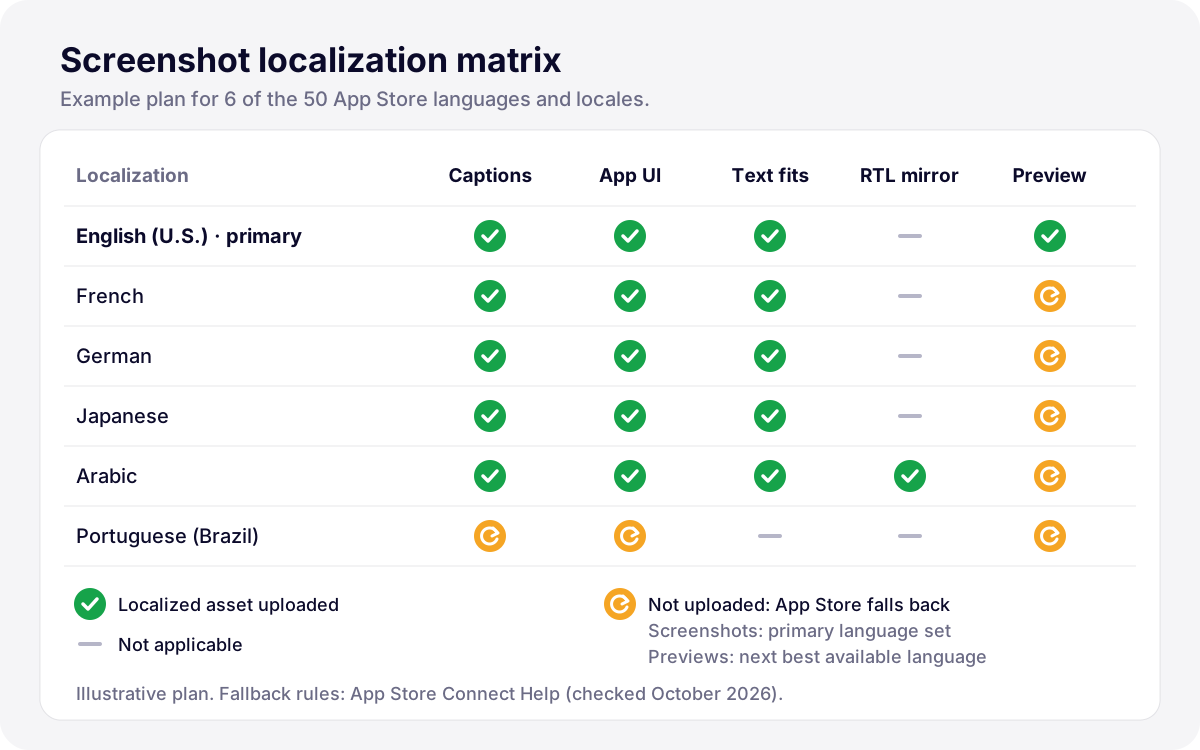
*Illustration: an example plan showing which assets are localized per language and where the App Store falls back.*
Ten screenshots, two device sizes and a dozen languages quickly add up to hundreds of files, which is why the next section matters. If you would rather hand it over, our [app localization service](https://develak.com/services/app-localization/) covers the app, the metadata and the screenshot sets, and we translate our own String Catalogs with [Xlocalize](https://develak.com/apps/xlocalize/), the Mac app we built for `.xcstrings` files.
## Tools to produce App Store screenshots
### Xcode Simulator
The Simulator saves screenshots at the device’s native pixel resolution, so a simulator from the 6.9-inch group (an iPhone 17 Pro Max, for example) gives you a file in one of the accepted 6.9-inch sizes, and an iPad Pro 13-inch simulator does the same for iPad. Use File › Save Screen, or the command line, and freeze the status bar first so every capture shows the same clean time, network and battery:
```
xcrun simctl status_bar booted override --time "9:41" --batteryState charged --batteryLevel 100 --cellularBars 4 --wifiBars 3
xcrun simctl io booted screenshot 01-main.png
xcrun simctl status_bar booted clear
```
### fastlane snapshot, frameit and deliver
For more than a couple of languages, automate. [fastlane snapshot](https://docs.fastlane.tools/getting-started/ios/screenshots/) runs your UI tests on each simulator and language listed in a `Snapfile` and saves the screenshots in per-language folders. `fastlane snapshot init` creates the Snapfile and the `SnapshotHelper.swift` file to add to your UI test target.
```swift
# fastlane/Snapfile
devices([
"iPhone 17 Pro Max",
"iPad Pro 13-inch (M5)"
])
languages(["en-US", "fr-FR", "de-DE", "ja", "ar-SA"])
scheme("AppUITests")
output_directory("./fastlane/screenshots")
clear_previous_screenshots(true)
```
```swift
func testScreenshots() {
let app = XCUIApplication()
setupSnapshot(app)
app.launch()
snapshot("01-Today")
app.buttons["All plants"].tap()
snapshot("02-Overview")
}
```
**frameit** then adds device frames, a background and per-language titles read from `title.strings` and `keyword.strings` files, configured in a `Framefile.json`. Two caveats: fastlane’s documentation warns that framed screenshots without titles keep a larger resolution and can’t be uploaded directly, and its frame library may lag behind the newest devices. Check the output dimensions with `sips` before uploading. Finally, `fastlane deliver` (or the App Store Connect API) uploads every set to the right language and size.
### Design tools
Many teams compose the final images in a design tool such as Figma or Sketch: one frame per accepted size, the raw simulator capture placed inside, captions as text layers so translators can work on them. Whatever the tool, set the artboard to the exact pixel size (1320 × 2868, not a “close enough” 1320 × 2870), export flattened PNG or JPEG, and keep captions inside a safe area so they survive scaling to smaller devices. If you want the whole set designed for you, see our [iOS app design service](https://develak.com/services/ios-app-design/).
## Pre-upload checklist
- 6.9-inch iPhone set at an accepted size; 13-inch iPad set if the app runs on iPad.
- Mac, Watch, TV or Vision Pro sets for every other platform you ship.
- PNG or JPEG, no alpha channel, exact pixel dimensions (checked with `sips`).
- 1 to 10 images per size and language, the strongest three first.
- Real app UI, no prices, no features missing from the build, clean status bar.
- Translated captions and localized UI for every language you sell in; mirrored for right-to-left languages.
- Scaled versions reviewed in Media Manager, with dedicated sizes where the layout differs.
Develak publishes more than 30 apps of its own on the App Store and runs this checklist for each of them, on iPhone, iPad and Mac. If you want help with your product page, [tell us about your app](https://develak.com/contact/).
## FAQ
### What is the App Store screenshot size for iPhone in 2026?
Upload 6.9-inch screenshots: 1320 × 2868, 1290 × 2796 or 1260 × 2736 pixels in portrait, or 2868 × 1320, 2796 × 1290 or 2736 × 1260 in landscape. App Store Connect scales them to every smaller iPhone. If you don’t provide a 6.9-inch set, 6.5-inch screenshots (1284 × 2778 or 1242 × 2688) become required instead.
### Do I still need 6.5-inch or 5.5-inch screenshots?
No, as long as you upload a 6.9-inch set. The 6.5-inch, 6.3-inch, 6.1-inch, 5.5-inch and smaller sizes are scaled automatically. You can still upload dedicated screenshots for them in Media Manager if the scaled versions look wrong, for example on the 16:9 screens of older iPhones.
### How many screenshots can I upload to the App Store?
Between 1 and 10 screenshots per device size and per language, plus up to 3 app previews per device size and language for iOS, macOS, tvOS and visionOS apps. App previews always appear before the screenshots on the product page.
### Can App Store screenshots be in landscape?
Yes. Every iPhone and iPad size has a landscape version (for example 2868 × 1320 on the 6.9-inch display). Mac, Apple TV and Vision Pro screenshots are landscape by nature. Keep in mind that with landscape screenshots fewer images fit in a search result, so the first one has to carry the message on its own.
### Why does App Store Connect reject my screenshots?
Usually for one of three reasons: the pixel size is not exactly one of the accepted dimensions (often after framing or exporting at the wrong scale), the PNG contains an alpha channel, or the file is not PNG or JPEG. Check with `sips -g pixelWidth -g pixelHeight -g hasAlpha` and re-export flattened at the exact size.
### Do I have to localize my screenshots?
It isn’t mandatory: a language without its own screenshots shows the primary language’s set. But if you localize the app and its description, untranslated screenshots undermine the product page, since they are the first thing people see. Localize at least the first three screenshots for each market you target.
Written by
## The Develak studio
Develak is an independent iOS app studio. We have published 34 apps on the App Store since 2025, in up to 44 languages, and we write these guides from that hands-on experience.
[See our 34 apps](https://develak.com/apps/) [About the studio](https://develak.com/about/)
## More iOS guides
[All guides](https://develak.com/blog/)
Guides 11 min read
### [TestFlight guide (2026): internal and external testers, Beta App Review and public links](https://develak.com/blog/testflight-guide/)
How TestFlight works in 2026: internal vs external testers, groups, public links and tester criteria, Beta App Review, uploading and processing builds, export compliance, feedback and crashes, and fixes for Missing Compliance, stuck processing and expired builds.
October 3, 2026
Guides 13 min read
### [iOS privacy manifest (PrivacyInfo.xcprivacy) in 2026: required reason APIs, SDKs and ITMS-91053](https://develak.com/blog/ios-privacy-manifest/)
A practical 2026 guide to the iOS privacy manifest: the four PrivacyInfo.xcprivacy keys, every required reason API code, third-party SDK manifests and signatures, the Xcode privacy report, and how to fix ITMS-91053 and the other upload emails.
October 3, 2026
Guides 9 min read
### [Case study: Xlocalize, a Mac app that translates Xcode String Catalogs with AI](https://develak.com/blog/case-study-xlocalize/)
How Xlocalize, Develak’s Mac app for .xcstrings files, approaches AI localization: Xcode’s native format preserved losslessly, per-key context, your own OpenAI, Claude or Gemini key in the Keychain, validation hints and honest error reporting. Only public facts from the Mac App Store.
October 3, 2026
## Turn this guide into a shipped app
Develak designs, builds and publishes native iOS apps for founders and teams worldwide, in English or French.
[Start a project](https://develak.com/contact/) [contact@develak.com](mailto:contact@develak.com)
---
*Markdown version of for AI assistants, published by Develak. Links lead to the web pages; add .md to a page URL for its Markdown version. Site index: .*